Ghost Hits and Hostnames: Build Your Own Bouncer for GA4
It is the second week of January. Hobart has remembered it is supposed to be summer,1 the cricket is on somewhere in the background, and you have finally opened the GA4 property for the website you look after: a small cidery in the Huon Valley, a shop page, a booking form for tastings, and a blog nobody has updated since the apple blossom.
Sessions are up. Not a little up. Up like someone has left the tap running. You open the "Active users by Town or City" card, and there, just under Hobart and comfortably ahead of Launceston, sits Lanzhou.
You look it up. Lanzhou is the capital of Gansu province, in north-west China, nearly 10,000 kilometres from the orchard, and it has, apparently, an intense and growing interest in your tasting-room opening hours. Singapore is in third place. Somewhere in your head a small, ambitious voice starts pricing refrigerated shipping containers and wondering whether "dry, with notes of Pink Lady" translates well into Mandarin. By the second cup of tea you have an export strategy, a draft email to Austrade, and a name for the Gansu distributor you have not met.
Then you click into the sessions. Every one lasts under ten seconds. Every one views exactly one page. Nobody books a tasting. Nobody so much as scrolls.
Close the shipping calculator. Lanzhou is not coming for your cider. What is visiting you is a stream of forged or automated hits, and you are far from alone. From about mid-September 2025, site owners around the world reported the same spikes from Lanzhou and Singapore, and many noticed something odd: the traffic was in GA4 but "not always recorded in Cloudflare, server logs or hosting analytics". Just before Christmas, one agency was warning small businesses in regional Australia to check their Town or City card for exactly this. Another found it could reach "30–60% of all sessions within a few days". On 10 November 2025, a Product Expert (a volunteer, not a Google employee) in Google's official community forum said the spikes were "likely due to" "a new, targeted form of inauthentic, non-human traffic (bots) that is currently bypassing the standard filtering systems", and that a long-term fix was in development.
So some of your visitors never visited. That sounds like a riddle, and it is actually the most useful thing to understand about GA4 data collection. Once you see how a hit can arrive without a visit, you can see which defences can stop it and which ones are standing at the wrong door.
This article is about one of those defences: the hostname allowlist, the rule that says "only count data from websites I own". Universal Analytics had it as a simple filter. As of January 2026, GA4 does not. It has the parts, though, and we can build one. We will start with what a hostname actually is, follow a ghost through the side window, meet the bouncers GA4 gives you, and then build a better one. Then a (made-up) cidery manager called Pip will test it for a week before it is allowed to throw anything away, because a data filter in GA4 is a shredder with no undo.
Let's get into it.
Part 1: The Return Address You Write Yourself
You have used a hostname every day of your online life, probably without calling it that. It is the part of a web address between the https:// and the first slash. In https://www.example.com/contact.html, the hostname is www.example.com. Google's own reporting documentation puts it the same way: the Hostname dimension "includes the subdomain and domain names of a URL".
So far, so dull. The Hostname report has a reputation as the least exciting screen in any analytics tool, and most of the time it deserves it: one row, your domain, 100%.
The interesting question is who tells GA4 the hostname. The answer is: whoever sends the data.
Think of it as an envelope
Picture the old way of entering a competition. You write your entry, put it in an envelope, and write your return address on the back. The sorting office does not check that address. It cannot. It trusts that you wrote down where you live, because nobody has a good reason to lie about it on a competition entry.
GA4 works the same way, and a very old explanation from the Universal Analytics days still describes it well: "Hostname is the domain of the page a visitor is on when they send a hit to GA." The important word is send. The hostname is not something Google looks up. It arrives in the envelope.
What the envelope actually looks like
Now the real mechanism. When your GA4 tag runs in a visitor's browser, it sends each event to Google as a web request. You can see these yourself: open your browser's developer tools, go to the Network tab, filter for collect, and load a page on your site. Here is the start of a real sample request that AnalyticsMarket published in its explanation of how Google Analytics collects data, trimmed and with line breaks added:
https://www.google-analytics.com/g/collect
  ?v=2
  &tid=G-W82H8S53ST
  &cid=1489945657.1691089601
  &dl=https://www.analyticsmarket.com/blog/how-google-analytics-collects-data/
  &dt=How Google Analytics Collects Data - AnalyticsMarket
  &en=page_view
Each pair is a key and a value. Christoph Kleine keeps a clear list of what the important ones mean:
tidis the ID of your GA4 web stream (the measurement ID). It usually starts withG-. It tells Google which property the envelope is for.2dlis "The URL on which an event takes place", in GA4 terms thepage_location. The hostname in your reports is the host part of that address.enis the event name, "The most important parameter of them all", which I think is a little harsh on the others.
That is the envelope. The property ID is the name of the person it is addressed to. The dl is the return address. And the tag writes both of them, on the visitor's device, and then posts the envelope to Google.
Hold on to one detail: look for a password in that request. There is not one. We will need that in a minute.
Part 2: How a Ghost Gets In Through the Side Window
Your measurement ID is not a secret. It is in your page source, in every request your site sends, and in the Network tab of anyone who visits. It has to be. The tag needs it to address the envelope.
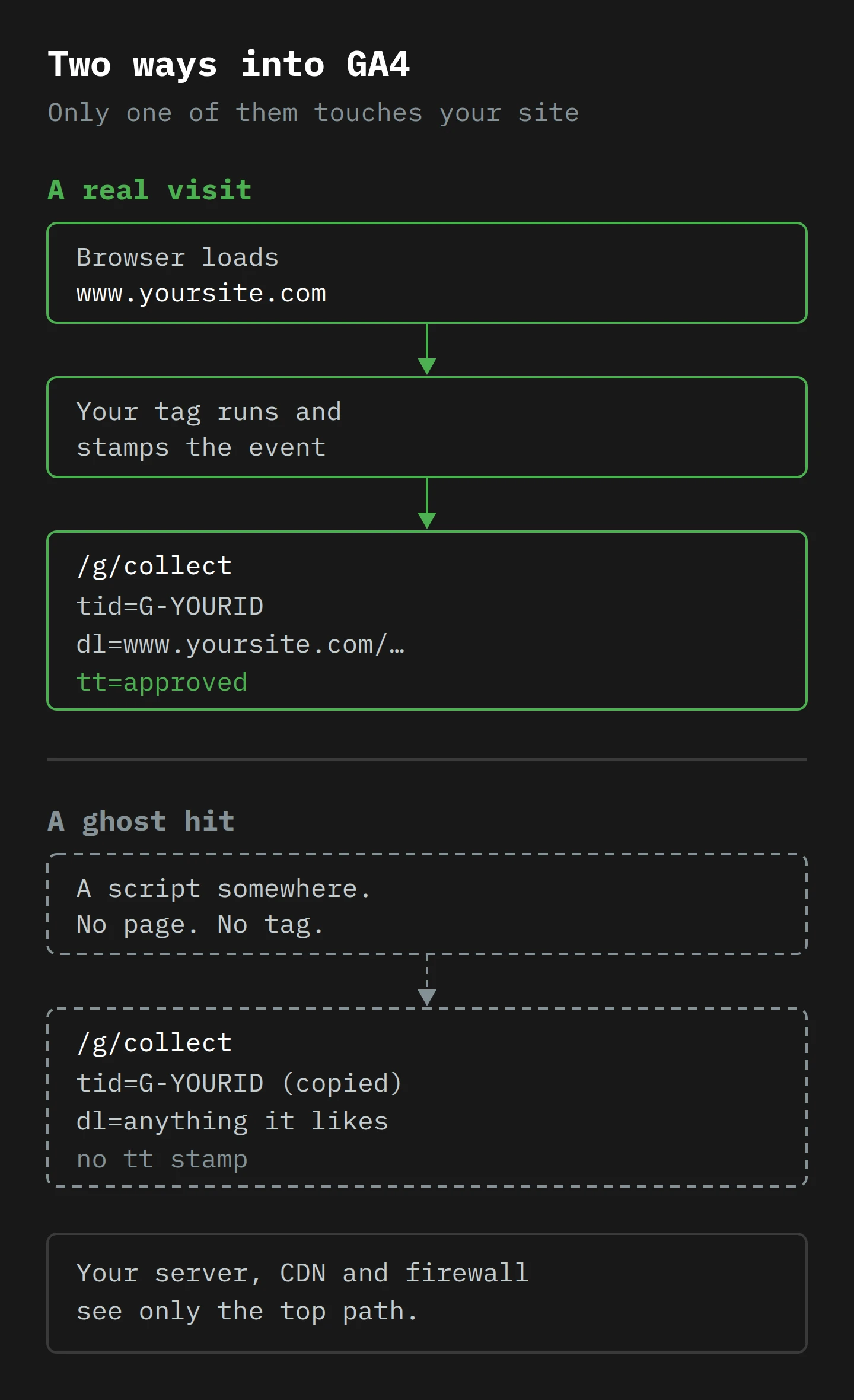
Now imagine someone who wants to send you envelopes without ever visiting your website. They do not need your website. They need your measurement ID (public), the address of Google's collection endpoint (the same for everyone), and a few lines of script that write out requests like the one above. They can put any page address they like in dl: yours, a made-up one, or none at all. They can send one or a million. Your web server never sees them, because they never go to your web server. They go straight to Google.
That is a ghost hit. The name comes from the Universal Analytics days, when ghost referral spam was traffic that "never actually hits your website". It is also exactly why the Lanzhou traffic showed up in GA4 but not in server logs, and why site owners who had blocked China and Singapore in their firewalls still saw the visits. A firewall guards your website. The ghost did not go to your website.
Look back at the sample request. Nothing in it proves the request came from a browser on your page.
Is this not what the Measurement Protocol is for?
Sort of, and the difference is instructive. Google does have an official way to send events from a server: the Measurement Protocol. It exists so you can record things that happen away from the browser, like an order that is paid by phone. Google says its intent is "to augment automatic collection … not to replace it".
That official path has a lock. Requests go to /mp/collect, and "You must provide the following in the request URL: api_secret", a secret you create in the GA4 admin screen and keep on your server. The browser path, /g/collect, cannot have a lock like that, because anything a browser needs to send is visible to whoever is using the browser. So the documented server door has a key, and the browser door is open to anyone who can write out a request.
Not every stranger is a ghost
Before we build anything, a fairness point. When you look at the Hostname report on a real property, not every unexpected row is an attack. Some are real people on real pages that are not quite yours:
- Your own staging or test site, if it runs the live tag. Very common. Mostly harmless, apart from making the numbers wrong.
- A copied site. Someone scrapes your pages, tag and all. Their visitors now appear in your reports.
- A translation proxy. Google Search sometimes shows a machine-translated copy of your page from a Google address that looks like
www-your-site-com.translate.goog, where, as Ahrefs puts it, "users never visit your domain". Google fetches your page and rewrites the address, so these can be real readers of your real content.3 - Your other domains. A shop on one domain and a checkout or booking system on another. If you set up cross-domain tracking, these are supposed to be in the report.
So any hostname rule has two jobs, and they pull against each other. It must stop the strangers, and it must not stop the checkout.
Part 3: The Bouncers GA4 Hires by Default
Let's go and meet the door staff. As of January 2026, GA4 gives you several places to check traffic. The trick is to notice where each one stands, because a bouncer at the wrong door is just a large man in a doorway.
Known bot exclusion: the bouncer you cannot see
GA4 automatically removes traffic from known bots and spiders, using "a combination of Google research and the International Spiders and Bots List" from the IAB. It is on for everyone. You also cannot turn it off, and you cannot see how much it removed. It works well on bots that announce themselves. The Product Expert said the Lanzhou traffic was likely a new kind of bot "currently bypassing the standard filtering systems", so this bouncer probably waved it through.
Unwanted referrals: a name badge, not a bouncer
People often reach for the unwanted referrals setting when they see strange domains. It does not do what they hope. It adds ignore_referrer=true to matching events so that the referrer "should not be displayed as a traffic source". It is for your payment processor, so a customer who comes back from checkout is not counted as a new referral. It changes the label on a guest. It keeps nobody out, and it has nothing to do with the hostname.
Data filters: the only bouncer at the real door
A data filter is the only tool in GA4 that stops data before it is processed. It is also the dangerous one. Google's warning is blunt: once an exclude filter is active, "the excluded data is never processed and will never be available in Analytics or BigQuery". There is no bin to rummage through afterwards. Google's older help page said it even more plainly: "Filtering is a destructive operation: once you filter data, it's gone. Forever."
As of January 2026, GA4 has exactly two types of data filter: Developer traffic (events sent in debug mode) and Internal traffic.4 Neither one looks at the hostname. The internal traffic filter looks at a single event parameter, traffic_type, and nothing else. Google's older page explained that the filters "are based on parameters that you add to your events", and that the parameter name is set to traffic_type and "is not modifiable".
So the one bouncer at the real door cannot read return addresses. He can only read one thing: a stamp on the back of the hand that says what kind of guest you are. And the bouncer does not stamp anyone himself. Something else has to do that before the guest reaches the door.
Keep three more details about data filters in your pocket. You can have up to 10 per property. Each one can be Testing (it marks matching data but removes nothing), Active (it removes data for real) or Inactive. And a filter takes 24 to 36 hours to start working.
Report filters and segments: the bouncer who checks the photos afterwards
Finally, you can hide data in reports. The Google Product Expert's advice for the Lanzhou wave was exactly this: build an exclusion segment in Explore, which "only affects how you view the data and ensures no valid traffic is permanently excluded". That is safe, and it is the only way to clean up data you have already collected, because data filters never apply to the past. But it keeps nobody out. The ghosts are still in the building, still in your totals, and still in any report someone opens without the segment.
Google's own hostname recipe
Here is where it gets interesting. Google knows people want a hostname rule, and as of late 2025 it has a help page called "Filter out unwanted traffic in Google Analytics". It is a clever workaround with the parts GA4 has:
- In Admin → Events, create an event modification: when
page_locationmatches the unwanted domain, settraffic_typetospam. The page even gives the allowlist idea as an example: "a hostname that doesn't begin with 'www.example.com' will be identified as spam." - Create an Internal traffic data filter that excludes
traffic_type=spam. - Leave it in Testing for 24 to 36 hours and check it in an exploration.
- Activate it.
It works well for one kind of stranger: a real page that runs your tag, like your staging site or a copied site. It cannot work for the ghost, and the reason is in a single line of the event modification documentation: "Modifications are calculated client side (before data is sent to Analytics)." The same page adds that "You can't modify events if you send them in a server-to-server setup".
Read those two lines together. The rule that writes spam on the envelope runs inside your tag, on a page. A ghost hit never loads a page and never runs your tag, so nothing ever writes spam on it. It arrives at the data filter with no stamp at all, and an exclude filter only removes what it can recognise. Google's recipe is a bouncer who hands out the "banned" stickers inside the venue.
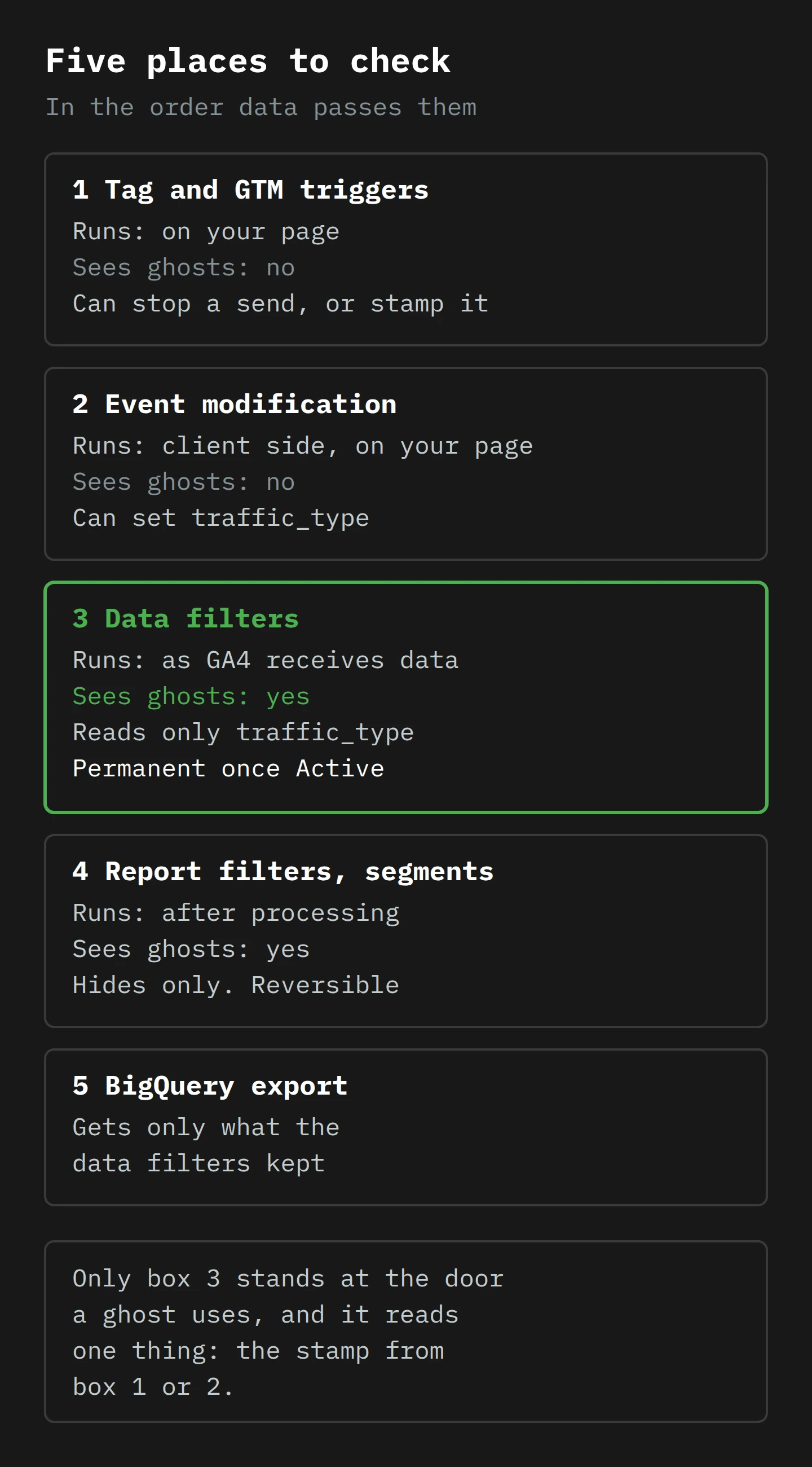
The same problem applies to the common Google Tag Manager fix, a trigger that only fires the GA4 tag when the page hostname is yours. It is tidy, it stops a staging site cold, and it does nothing about ghosts, because a ghost never loads your container either. Both bouncers stand at the front door of a building whose side window is open.
Part 4: Flip the List (Stamp the Guests You Know)

Here is the idea that makes the whole thing work. Google's recipe marks the bad guests and throws them out. The ghost never gets marked, so the ghost stays. Turn it around: mark the good guests, and throw out everyone who is not marked.
A data filter has a setting for exactly that. Its filter operation has two options, Exclude and Include only. In Google's words: "When you create an include filter, Analytics processes only data that matches the filter." Netpeak's walkthrough from 2024 shows the same two options in the Internal traffic filter's dropdown. One honest caution: Google's current January 2026 pages only walk you through Exclude, and the glossary simply says a filter can "include or exclude". So when you build this, look at your own dropdown first. If Include only is not there, stop and use Google's exclude recipe, which still handles staging and copied sites.
The design, then, is two parts.

Part one: the stamp
On every page load, your tag checks the page's own hostname against a short list of hostnames you own. If it matches, the tag sets traffic_type to approved. If it does not, the tag sets traffic_type to something else, like unapproved.
In Google Tag Manager, this is two small pieces:
- A RegEx Table variable. Its input is the built-in Page Hostname variable, which "Provides the hostname portion of the current URL". Each row is a pattern and an output. The table runs from top to bottom and returns the first match, and you set a default value for "no match".5
- A
traffic_typeparameter on your Google tag, with the RegEx Table as its value. This is the same place Julius Fedorovicius setstraffic_typein his guide to excluding internal traffic, and it adds the value to the events that tag sends.
If you use gtag.js without Tag Manager, Google's older help page confirms that you can "manually add the traffic_type parameter to your event code" in the same way.
Once it works, you can see the stamp in the envelope. Analytics Mania explains that the tag adds a parameter called tt (short for traffic type) "to every request". His testing steps show that a value you set this way appears in the same place, so in your Network tab, a stamped request carries tt=approved.
Part two: the bouncer
Create an Internal traffic data filter, set the operation to Include only, and set the parameter value to approved. Start it in Testing. We will not make it Active until Part 6.
Now follow each kind of guest through the door:
- A real visitor on your site: the tag runs, the hostname matches, the event says
approved. Included. - A visitor on your staging site or a copied site: the tag runs, the hostname does not match, the event says
unapproved. Not included. - A ghost: no page, no tag, no stamp. The event has no
traffic_typeat all. Not included.
That last line is the whole point. For the first time, the bouncer at the real door is removing something the ghost cannot get: a stamp that your tag gives out only on your own pages.
What the bouncer still cannot do
I promised this blog would not oversell anything, so here are the limits.
A copied stamp still works. The stamp is not a secret either. It sits in plain text in every real request, as tt=approved. A ghost that copies a complete real request, stamp and all, will get in. This design does not make GA4 unforgeable. It removes the lazy forgeries, and it raises the price of the rest.
Bots that actually load your page get stamped. Some automated traffic does run a real browser on your real site. DefiniteSEO noticed two groups in the Lanzhou wave: one screen size that seemed to match ghost visits that never touched the server, and another among bots that did load the site. To your tag, the second group is a visitor on your hostname, so it gets approved. A hostname check is not a bot check. For those, you still need the pattern-hunting in my guide to bot traffic in GA4.
I cannot tell you whether this would have stopped the Lanzhou wave. None of the reports I read looked at the hostname on those hits. The allowlist stops any ghost that arrives without your stamp, whatever it claims its hostname is. Whether those particular ghosts were that lazy, I do not know.
Part 5: The Guests Who Do Not Come Through the Front Door
This is the part that decides whether the allowlist is a good idea or an expensive mistake. An Include only filter is property-wide: Google's older page says filters "are applied to all incoming data". It drops everything that does not carry the stamp. That includes a few things you want, which do not arrive through your tag on your pages.
Your own server events. If you send events with the Measurement Protocol (offline sales, subscription renewals, refunds from your shop platform), they do not pass through your GTM container. They will not have the stamp unless you add it yourself, and the event modification route cannot add it, because it does not work on server-to-server events. Before you go further, list every system that sends events to the property. If you cannot confirm that a system's events arrive with traffic_type set to approved, the allowlist will delete them.
Server-side tagging. If your tag sends to a server-side GTM container first, check the stamp survives the trip. Analytics Mania found that GA4's own internal traffic parameter "is not added to GA4 requests if requests are sent to your server-side setup first". That was for the IP-based rule, not a GTM parameter, but it is exactly the kind of gap the Testing state is for.
App streams on the same property. Internal traffic rules do not apply to apps at all: "You can't filter out internal traffic from app users." If your property has an app stream as well as a web stream, an Include only filter on a web-only stamp needs very careful testing, or a separate property for the web.
Your IP-based internal traffic rules. These write to the same traffic_type parameter. If your office IP rule says internal and your GTM stamp says approved, the same event has two opinions about one parameter. I could not find Google documentation that says which one wins. Do not guess. Pick one method for traffic_type on your web stream, or test from the office in Testing mode and look at the result.
The pages you forgot you owned. Your checkout domain, your booking widget, the landing page builder the marketing team uses for one campaign each spring. Every host where you want data needs a row in the RegEx Table. The Hostname report is where you find them, which is why the first step below is an audit and not a filter.
If that list looks like a lot, it is a fair warning, not a reason to give up. A small site with one domain, no app and no server events can build this in an afternoon. A large site with three domains, an app and a CRM feed needs a proper plan and a second pair of eyes.6
Part 6: Pip Tests the Bouncer

Let's walk through it with a person. Pip (made up, like the cidery) looks after the website for a small cider business in the Huon Valley. The site lives at www.pipscider.example.7 There is one GA4 property with one web stream, no app, and no server events. Bookings for tastings go through a third-party booking service, which Pip has always called "the bookings site", and which runs Pip's tag on its confirmation page. Pip has cross-domain tracking set up between the two.
Monday: the audit
Pip opens Explore and builds a free-form exploration: Hostname in the rows, Event count and Sessions as values, over the last 90 days. The result:
| Hostname | What it is | Keep? |
|---|---|---|
www.pipscider.example | The site | Yes |
pipscider.example | The site, without www | Yes |
book.example.net | The booking confirmation page | Yes |
www-pipscider-example.translate.goog | Google's translated copy of the site | Pip's decision |
staging.pipscider.example | The developer's test copy | No |
localhost | Someone testing on a laptop | No |
cheap-cider-deals.example | A site that copied Pip's pages | No |
Pip thinks about the translated copy for a while (and a cup of tea). The people reading it are real, and they are reading Pip's content. Pip decides to keep it. Following Google's decoding rule, where single hyphens become dots, www-pipscider-example.translate.goog is www.pipscider.example, so it is definitely Pip's page and not somebody else's.
Pip also builds the Product Expert's exclusion segment for the existing Lanzhou traffic, because no filter will fix the past, and the owners will want to see the year so far without the ghosts.
Tuesday: the stamp
In Tag Manager, Pip creates a RegEx Table variable called Hostname stamp, with Page Hostname as the input:
| Pattern | Output |
|---|---|
(www\.)?pipscider\.example | approved |
bookings\.example\.net | approved |
www-pipscider-example\.translate\.goog | approved |
The default value is unapproved. Pip then adds the parameter traffic_type, with the value {{Hostname stamp}}, to the Google tag.
Here is a design choice worth copying. Pip does not add a trigger to stop the tag from firing on other hostnames. The tag still sends from the staging site and the copied site, with unapproved on it. That feels backwards, but it is on purpose: while the filter is in Testing, those events show Pip exactly what the allowlist would remove. A blocking trigger would stop the send before GA4 ever saw it, and hide the very thing Pip needs to check.
Pip opens Tag Manager's preview mode, loads the home page, and looks in the browser's Network tab. The collect request now has tt=approved. On the staging site, the same request has tt=unapproved. Pip publishes the container.
Wednesday: the bouncer, in Testing
In Admin → Data collection and modification → Data filters, Pip creates a new filter:
- Filter type: Internal traffic.
- Name:
approved_hosts(a filter name must start with a letter and can have up to 40 letters, numbers, underscores and spaces). - Operation: Include only.
- Parameter value:
approved. - State: Testing.
Pip does not touch the default "Internal Traffic" filter, which every property has, and which excludes traffic_type = internal. There is no office IP rule on this property, so nothing else writes to traffic_type.
Thursday and Friday: reading the test
In Testing, GA4 does not remove anything. It adds the filter's name to a dimension called Test data filter name for data that satisfies the filter. For an Include only filter, my reading of Google's wording is that "satisfies" means the data the filter would keep. So events that show approved_hosts would stay, and events without it would go. That reading is the whole test, so Pip checks it directly before trusting it: Google's older page says test data is "available right away in the Realtime report", so Pip loads the home page on a phone and checks that the event arrives with approved_hosts. It does.
After the 24 to 36 hours, Pip builds an exploration with Hostname and Test data filter name in the rows, and Event count as the value. There are two groups:
- Rows with
approved_hosts: the site, thewww-less site, the translated copy. These would stay. - Rows without it: staging, localhost, the copied site, a large block of events from Lanzhou and Singapore, and (this is the reason we test)
book.example.net.
The booking confirmation page is on the "would be removed" side. Pip looks closer. On Tuesday, Pip typed the booking pattern from memory ("the bookings site") instead of copying it from Monday's audit table. The confirmation page is on book.example.net, not bookings.example.net. Four letters, and every booked tasting would have disappeared from GA4 for good. That would have been the first thing the owners asked about, probably on the Monday of a long weekend.
Pip fixes the pattern in the RegEx Table, publishes, and waits another day. The confirmation page moves to the "stay" side.
One more thing is on the "removed" side: events from Lanzhou with no hostname stamp at all, which is what ghosts look like to this bouncer. But some Lanzhou sessions are on the "stay" side too, with approved on them. Those loaded Pip's real pages. The allowlist will not remove them, and Pip's segment stays in place.
The next Monday: activate, and write it down
Pip changes the filter state to Active and saves. Google says it can take 24 to 36 hours to take effect. Pip adds a note to the property's records with the date and the filter name, so that in a year's time, when someone asks why the staging site stopped appearing in reports, there is an answer that does not rely on Pip's memory.
What each system now records:
- GTM preview: the Google tag fires with
traffic_typeset toapprovedorunapproved. - The Network tab:
tt=approvedon requests from Pip's own hostnames. - GA4 reports: only events that carried
approved. - BigQuery export, if Pip turns it on: the same. The export has a hostname field,
device.web_info.hostname, but filtered events never reach it. BigQuery is not a backup of what the filter removed.
What to Do This Week
You do not need to build the whole thing this week. Most of the value is in steps 1 to 4, which change nothing.
- Audit your hostnames. In Explore, put Hostname in the rows and Event count in the values, over at least 90 days. For each hostname, write down what it is and whether you want its data. (If the list surprises you, the unassigned traffic post has more ways to find odd traffic.)
- List everything that sends events to the property. Web streams, app streams, Measurement Protocol integrations, server-side containers. Anything that does not pass through your web tag is a risk for an Include only filter.
- Check your filter options. In Admin → Data filters, start creating an Internal traffic filter and look at the operation dropdown. If Include only is not there, stop here and use Google's exclude recipe for staging and copied sites.
- Clean up the past with a segment. Data filters do not change old data. Build an exclusion segment in Explore for the history you already have.
- Build the stamp. A RegEx Table on Page Hostname with one row per approved host, a default of
unapproved, andtraffic_typeon the Google tag. Do not add a blocking trigger during testing. - Check the envelope. In the Network tab, confirm
tt=approvedon your pages andtt=unapprovedelsewhere (a staging site is a good test). - Create the Include only filter in Testing. Wait 24 to 36 hours.
- Confirm what Testing marks. Send one known real visit and check that it arrives with your filter's name in Test data filter name.
- Read the test. Hostname and Test data filter name in the rows, Event count in the values. Everything without your filter's name is what you would lose. Look for your checkout, booking and campaign pages in that group.
- Fix, and test again. One wrong letter in a pattern is enough to lose a whole domain.
- Activate, and write down the date. Keep your exclusion segment for bots that load real pages.
Final Thoughts
Back to the second week of January, and Lanzhou's surprising interest in cider. The traffic was not a market. It was a stack of envelopes, posted straight to Google's sorting office, with your name on the front and whatever the sender felt like writing on the back. GA4 counted them, because GA4 counts what it is sent.
That is the one idea to keep: a GA4 property believes the envelope. Every defence that runs on your page, whether it is a GTM trigger or Google's own hostname recipe, can only check guests who come through your front door. The data filter is the one bouncer at the real door, and he reads just one thing: a stamp. So give the stamp only to the guests you know, tell him to let in only the stamped, and make him practise in Testing mode until you have seen, with your own eyes, every real guest he would have turned away.
Your next step is the smallest one: open Explore, put Hostname in the rows, and look at the last 90 days. It takes five minutes, and it is almost never just one row.
Now, if you'll excuse me, I have a strong urge to go and buy some cider. Locally.
Notes
-
January is the middle of summer in Tasmania, which means it is sometimes warm and sometimes snowing on kunanyi/Mount Wellington, occasionally on the same afternoon. ↩
-
The name
tidis a leftover from Universal Analytics, where it stood for tracking ID. GA4 changed the ID's format toG-and a mix of letters and numbers, but kept the old parameter name, the way a house keeps a doorbell long after everyone starts knocking. ↩ -
Google publishes a decoding rule for these addresses, mainly for ad networks: remove
.translate.goog, turn single hyphens into dots and double hyphens into single hyphens. Google's own examples:foo-example-com.translate.googisfoo.example.com, andfoo--example-com.translate.googisfoo-example.com. That is how you can tell your own translated pages apart from someone else's. ↩ -
If you were hoping for a native hostname filter in the new year, GA4's release notes for 16 January 2026 are about cross-channel budgeting and conversion attribution reports. Data filters do not get a mention. ↩
-
By default, a RegEx Table pattern must match the whole input and ignores case. So
pipscider\.examplewill not matchstaging.pipscider.example, which is exactly what you want from an allowlist. You can change both settings under Advanced Settings, and for this job you should not. ↩ -
If you have both Include only and Exclude filters active, GA4 applies all the Include only filters first, as one group, and then applies each Exclude filter in turn. So an Include only allowlist and the default Exclude filter for internal traffic can work side by side, as long as each event carries only one
traffic_typevalue. ↩ -
The
.exampleending is reserved for documentation, so no real cidery gets dragged into this. It is a shame, because Pip's cider is, by all fictional accounts, excellent. ↩