Tag, You're It: Google Tag and GTM Become One Container
The banner is blue, and it is very polite. You open Google Tag Manager on a Tuesday morning with a cup of tea, and there it is across the top of the Overview page: "Optimize your Tag Manager container", with a button that says "Review details". It does not flash. It does not count down. It simply waits, with the patience of something that knows you will click it eventually.
You look past it at the container underneath. It is six years old. It has tags named "GA4 - Config - NEW", "GA4 - Config - NEW (2)" and "DO NOT DELETE". It has a Custom HTML tag called "test - Marcus", and Marcus left the company before the pandemic.1 There are three consent tags, and nobody is sure which one is live. And a stranger with a button now offers to reorganise all of it, the way a removalist might offer to pack your whole house into one crate, with a cheerful promise that nothing will break, while you remember the cat that nobody has seen since 2022.
Your mouse drifts toward "Review details". Your whole marketing reporting stack, which took two agencies and one very long winter to build, suddenly feels like a Jenga tower in a light breeze.
Put the mouse down for a minute. Nothing happens until you publish. Google's own help page says that optimising is recommended, but that "no changes will be made automatically, and you can choose whether to adopt the new configuration". The banner is an offer, not an order.
But it is an offer worth understanding, because it touches the one part of your website that regulators now look at first. In March 2025, a German administrative court in Hannover ruled that Google Tag Manager itself needs consent before it activates, after the regulator's lab found that the container was contacted, and device data such as the IP address was sent, before a visitor had made any choice. The container is no longer a neutral bit of plumbing. How it loads, and what it sends to whom, is a compliance question as much as a performance one.
And as of August 2026, Google is changing what a container is. Its announcement says that every Google tag "will be upgraded to fully capable Google Tag Manager containers", and that optimised containers will send data straight to Google's products without loading an extra library first. Two products that have lived side by side for years become one.
So here is the plan. We will start with what a tag, a container and a destination actually are, down to the line of code on your page and the prefix on your container ID. Then we will look at what Google changed in August and what it says it did not change, click through the optimise flow one screen at a time, and test the two places where I would expect a surprise: consent and server-side tagging. A (made-up) cider company near Hobart will do the testing for us. By the end, you can decide whether to click the button this month, next month or never.
Let's get into it.
Part 1: Tags, Containers and Destinations

You have used a mail room, even if you have never worked in a big office. You put a letter in the tray. Someone else reads the address, decides which van it goes in, and sends it on. You do not need to know the route to Launceston. You only need to know where the tray is.
A website does the same thing all day. Every time someone views a page, adds a product to a cart or fills in a form, a small program on the page writes a note about it and sends that note to someone: an analytics tool, an ad platform, a heatmap vendor. That small program is a tag. In practice, a tag is a piece of JavaScript that collects some facts about an event and sends them, usually as a network request, to a vendor's server.
In the early days, each vendor gave you its own tag, and a developer pasted each one into the site by hand. Ten vendors meant ten snippets, ten release cycles and ten chances to break the checkout. So we built mail rooms.
The container is the mail room
A tag management system is one snippet on the page that loads all the other tags for you, based on rules you set in a web interface. Google Tag Manager calls each of these setups a container. As Google's own setup page puts it, you "add 2 snippets of code to each page of your website", and after that you manage the tags in the Tag Manager website instead of in your code.
Inside the container there are three kinds of things. Tags are the notes that go out. Triggers are the rules for when a note goes out ("when the page loads", "when someone clicks the Buy button"). Variables are the facts that fill in the note (the page URL, the order value). When you click Publish, Tag Manager bundles all of that into one JavaScript file, gtm.js, and serves it from Google's servers with your container ID in the address.
So the mail room is a script that your page fetches, and that script contains every rule you wrote. When you add a Meta pixel through the interface, you have not changed your website's code at all. You have changed the contents of a file your website downloads on every visit.
The Google tag is Google's own mail room
Google, meanwhile, built a second, smaller mail room just for its own products. It used to be called the global site tag, and since 2022 it has been called the Google tag (the file is gtag.js). It does not do Meta pixels or Custom HTML. It sends data to Google products, and only Google products.
On the page, a Google tag looks like this, and the last line is the important one:
<script async src="https://www.googletagmanager.com/gtag/js?id=G-XXXXXX"></script>
<script>
  window.dataLayer = window.dataLayer || [];
  function gtag(){dataLayer.push(arguments);}
  gtag('js', new Date());
  gtag('config', 'G-XXXXXX');
</script>
That config command is how you establish data flow between your website and Google products, in Google's words. It tells the library "this page talks to this Analytics property" (or this Google Ads account). Hold on to that line. It is the one Google is about to remove.
The destination is the address on the letter
Each Google product account that receives data from a Google tag is a destination: a Google Analytics property, a Google Ads account, a Floodlight configuration. Google's help page on tag management spells out the rules, and they are stricter than most people expect:
- One Google tag can send to several destinations.
- "A destination must always have an associated tag."
- Adding a destination to one tag "involves removing it from any other Google tag that has it as a destination".
- A tag can be standalone, with no destinations at all, "in which case it is not sending data to any Google destinations".
So the destination is the address, and each address can be written on only one tag at a time. That is why a Google tag can end up with several IDs. A single Google tag can have multiple tag IDs, and Google says they are interchangeable. Your Ads AW- ID and a newer GT- ID can point at the same tag underneath.2
The prefix is a permission slip
Now the real mechanism. When your page loads a container or a Google tag, it sends Google an ID, and Google's servers return the matching configuration. That ID has a letter prefix, and the prefix is not a label. Google says it "specifies the functionality that the container can execute":
- An ID that starts with
GTM-allows all tag types, including third-party scripts and Custom HTML. - An ID that starts with
G-orAW-is "limited to Google tags". It can send data only to Google services.
Google made the ID the deciding factor in July. A release note from 9 July 2026 says that "the ID used to load the container will control this behavior, regardless of the path used". Before that, a container loaded through an unusual path could quietly fall back to a Google-only mode. Now the prefix decides: a GTM- ID runs everything, and a G- or AW- ID runs only Google's tags.
So the two mail rooms have been converging for a while. Google told GTM users as early as 2022 to "stay tuned for future updates on tighter integration and upgrade paths", as Metricfixer notes in its history of the change. On 5 September 2023, the Google tag became something you could deploy inside Tag Manager, and every GA4 Configuration tag was automatically upgraded into a Google tag. I wrote about that change, and my mixed feelings about it, in Google Tag's Phase 2.0. Then, from 10 April 2025, containers with Google Ads and Floodlight tags started to load a Google tag automatically before they sent events.
Look at what that means inside a typical container today. The page loads gtm.js. The container fires a Google tag. The Google tag then loads gtag.js, a second library, which knows how to talk to Google's products. You have a mail room that hires a second mail room to deliver the Google letters. August's change is about firing that second mail room.
Part 2: What Google Changed in August
Google first published its plan on 20 May 2026, the same day as Google Marketing Live. PPC Land reported at the time that the announcement did "not carry a fixed rollout date". On 20 August, the help page was updated, and Google's Ads Liaison announced the rollout on X:
📣 What if building a strong data foundation didn't require jumping through a ton of technical hoops? Today, we're rolling out updates across our tagging tools to make it easier for advertisers to effectively measure website performance.
— AdsLiaison (@adsliaison), 20 August 2026 on X
That is the opening of a longer post with a short video. Search Engine Roundtable has the rest of Ginny Marvin's list the next day. A rollout, though, is not an arrival. The day after the announcement, Stape noted that the changes "aren't widely available on all the containers right now". If you do not see the banner yet, you are not doing anything wrong.3
Here is what the Google help page says is changing, as of August 2026.
Every Google tag becomes a container
"Your Google tags will be upgraded to fully capable Google Tag Manager containers." A website that only uses a Google tag (a small business with a G- snippet pasted into its theme, say) will get Tag Manager's interface, its debugging tools and its version control. Google says this "will not change the in-page behavior of the Google tags", and that "each Google destination will have its own tag, preserving your existing setup and triggers for automation events".
This is the part of the change that affects the most sites and the fewest experts. If you already run GTM, your life does not change much here. If you run a plain Google tag, you have just been handed the keys to a mail room you did not know you owned. That is useful, and slightly alarming, like finding out your garden shed has a basement.
The snippet loses its config line
Remember the config line? Google says that "all new deployment snippets will be the same", and that "they will not have the gtag config command". Instead, it recommends that you set initialisation "using the gtm init trigger", which "can also configure the tag to wait for the config command if you want to preserve legacy setup".
In plain terms, the page stops telling Google what to do. It loads one standard snippet with an ID. The container decides, from its own settings, when each destination starts. Maqui, an agency that writes in Spanish, describes the effect well: under the new model, gtm init fires once and the container decides when to start each destination. If your site starts products in a set order in its own code ("GA4 only after consent, then Ads"), Maqui says you will need to rebuild that order with GTM triggers instead of inline JavaScript.
That affects new snippets. Your existing snippet keeps working. But the day a developer reinstalls the tag from Google's current instructions, the config line will be gone, and any code on your page that assumed it was there will be waiting for a letter that never arrives.
Containers send data straight to Google
This is the performance change, and it is the reason the banner exists. Google's words:
Tag Manager containers will be able to send data directly to Google destinations, resulting in a faster website performance. Previously, Google Tag Manager loaded extra JavaScript (gtag.js) to send data to a Google destination, which could cause latency in measurement transmission.
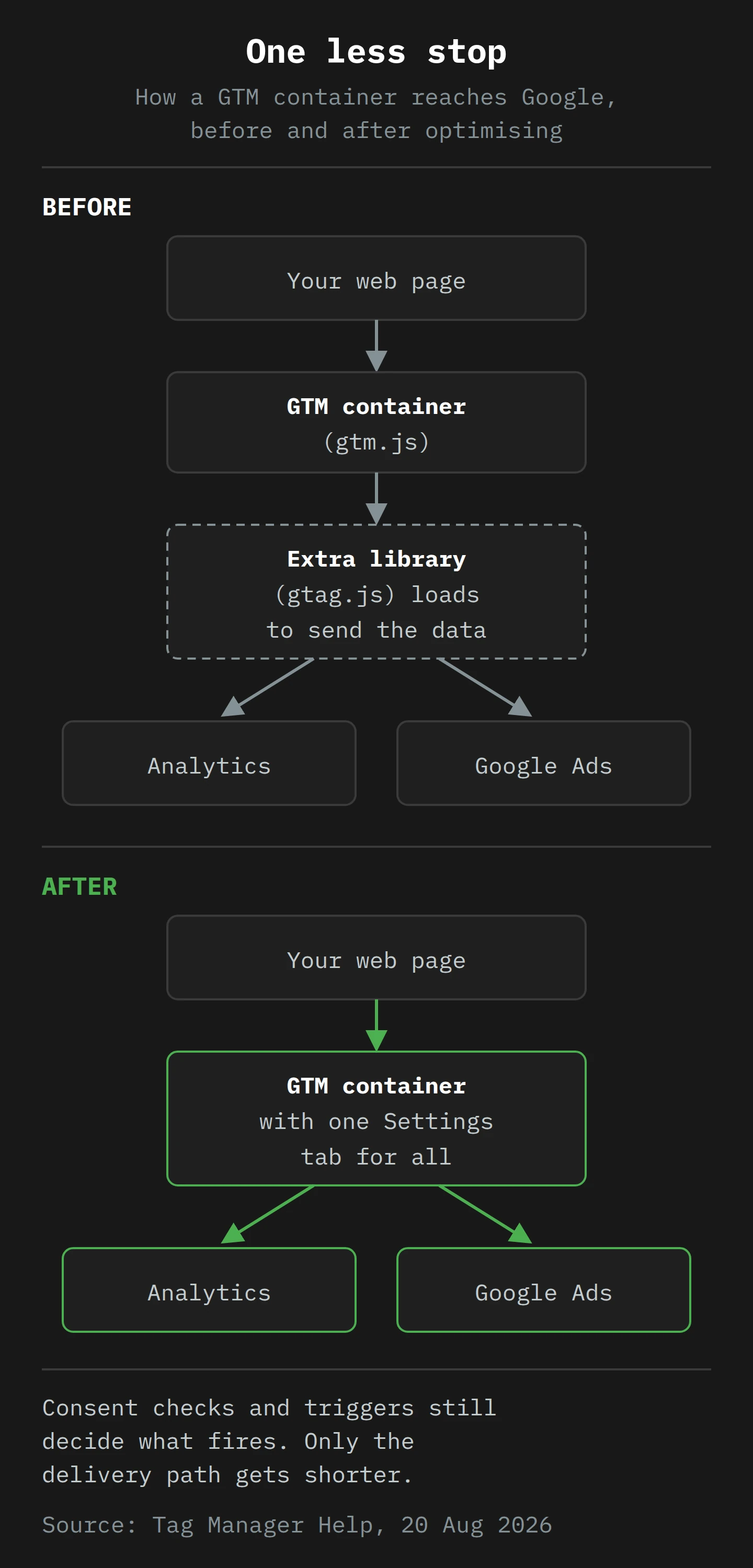
So the second mail room goes. The container itself learns to speak Google, and one library request disappears from the page. Google does not publish a number for the speed gain, and I will not invent one. On a site that loads Analytics, Ads and Floodlight through GTM, one fewer script on the critical path is a real improvement. On a simple site with one Analytics property, you may not notice it at all.
A new Settings tab, and a hidden Advanced tab
The Overview page is also different. Google rolled out a redesigned Overview page on 1 July, and the August help page lists what comes with the unification. There is a new Settings tab for "container-wide settings", with a "data flow map" of the Google destinations those settings apply to. Triggers, Variables, Templates and Folders move into a collapsible Advanced section. Google says the redesign "won't remove any functionality you already use".
Simo Ahava, who has written more about GTM than anyone should reasonably be allowed to, looked at the new interface in June. He noted that the view of Google tags and their destinations "becomes much more relevant once the Google Tag / GTM integration rolls out", and read the collapsed navigation as preparation "for the masses that will soon have their Google Tags converted to full GTM containers". That matches the plan. Google is about to hand millions of small sites a container, and it does not want Triggers and Variables to scare them away on day one.
There is also a new visual tagging tool, in beta for Google Ads purchase conversions only. You click through a purchase on your own site and point at the order total, and the tool builds the tags and variables for you.4 Simo's view is the one I share: it is slick, but relying on CSS selectors for purchase data "sounds a bit scary", and a proper data layer is still the better way. For this article, it is a side road. The main road is the banner.
Part 3: The Optimise Flow, One Screen at a Time
The banner does three things, according to Google's Tag Manager help. It moves your Google tag settings into the new Settings tab, while "your event tags will remain unchanged". It switches the container to send data straight to Google destinations. And it links the container to your Google product accounts, so that it is "directly visible and manageable within the interface of other Google products".
People with edit, approve or publish permission on the container can start the flow from the banner. The step-by-step flow is on a separate help page, and it has two versions, depending on the state of your container.
Version one: your Google tags agree
If you have one Google tag, or several that all have the same settings, the banner says "Optimize your Tag Manager container". The steps are:
- On the Overview page, click Review details to see the proposed container settings.
- Optionally, click Preview changes to see everything that will change in your workspace.
- Click Add to workspace. This consolidates your Google tags into the container.
- Test the change in Preview mode.
- Click Submit to publish.
Notice step 3. "Add to workspace" does not publish anything. It writes changes into a workspace, the same draft area you use for any other edit. Google says that if needed you can "undo the changes in your workspace, or roll back to a prior version if you've already published". In GTM terms, this is an ordinary change with a nice wizard in front of it.
Version two: your Google tags disagree
If you have several Google tags with different settings (say, one with cross-domain measurement set and one without, or two with different server URLs), the banner says "Upgrade your Tag Manager container", and the button says Get started. The flow asks you to "choose and confirm which Google tags to consolidate", which in practice means choosing whose settings win.
This is where I would slow down. You are merging several configurations into one Settings tab. Google's older help page on combining Google tags has a warning I would pin above this screen: when two tags with different on-page configurations are combined, "only the first config command will be processed, and subsequent config commands and settings for that Google tag will be ignored". That warning is about a different feature, but the lesson carries over. When two sets of settings become one, something is dropped, and the tool will not always tell you what it was worth.
So before you click Get started, write down every Google tag in the container and its settings: destinations, cross-domain domains, any configuration parameters (especially server_container_url), and any user-provided data settings. Then you can compare the result against that list, instead of against your memory.

The one thing a rollback does not undo
Here is the line on Google's help page for the optimise flow that I think deserves more attention than it has had:
Permissions are not versioned.
During optimisation, "account links are established automatically", and "'Read' access is granted by default". Google Tag Manager admins choose the level of access each destination gets, and you can change it later in the External Account Links section of the container's admin settings.
Read access from your Google Ads account to your container is not dangerous by itself. But think about who can see your Google Ads account: an agency, a former agency, a freelancer from three years ago whose access nobody removed. After optimisation, those people can see the container from inside Google Ads. And because permissions are not versioned, rolling the container back to last week's version does not remove the links. You have to go to External Account Links and remove them yourself.
This is not a scandal. It is a sensible default with a sharp edge, and the fix takes two minutes if you know it is there. Put "check External Account Links" on your list next to "check the tags".
Part 4: Consent Still Works the Door

Imagine a town gate with a gatekeeper. Every messenger who wants to leave the town has to stop at the pole and show a pass. Now the town replaces its old messengers, who each carried a heavy satchel of equipment, with new ones who carry less and move faster. The question that matters is not how fast the new messengers run. It is whether they still stop at the pole.
That is the consent question for the optimise flow. The delivery path changes. The gate has to stay where it is.
How consent works in a container today
In GTM, consent has two layers, and I went through them in detail in No Consent, No Conversions. The short version:
The order of events. Google's developer guide says that, in general, code should run in this order: load the Google tag with a gtag('consent', 'default', …) call, load your consent banner, and then call update when the visitor makes a choice. Inside GTM, the tool for this is the Consent Initialization trigger, which Google says "will always fire before all other tags, including any Initialization triggers". Your consent platform's tag, which sets the defaults, should fire there.
The checks on each tag. Google's tags have built-in consent checks, and they change their behaviour based on the consent state: consent mode. Other tags can be set to "Require additional consent for tag to fire", so they only fire when the consent types you name are granted.
So the gatekeeper is not the delivery library. It is the order in which your triggers fire, and the checks on each tag. In theory, removing gtag.js from the path should not touch either.
What the experts say, and why I would test anyway
Simo Ahava said as much when the plan was first announced. In LinkedIn comments quoted by PPC Land, he described the upgrade as "a delivery optimization first and foremost" and said that "the delivery is still controlled by consent, triggers, reduced signals etc. just as before". I believe him. He understands this system better than almost anyone outside Google.
I would still test it, for three reasons.
First, the settings move. The optimise flow takes settings that lived on individual Google tags and puts them in one container-wide Settings tab. If one of your Google tags had a consent-related parameter and another did not, the conflict screen makes you choose, and the result is only as good as your choice.
Second, the order can change. On most sites, the consent defaults are set by a consent platform's tag on the Consent Initialization trigger. On some sites, a developer set them in inline code before the snippet, and that code expects a certain sequence of config and consent calls. New snippets have no config line. If your consent logic leans on that line, it needs a retest.
Third, Stape, which sells server-side GTM hosting, gives the same advice in its August write-up: for complex setups, "check initialization, consent behavior, triggers, and data flow before pushing changes live".
And there is the Hannover ruling. The court's objection was that the container was contacted and data such as the IP address was sent before consent.5 The optimise flow does not change whether the GTM script loads before consent. That depends on how you install GTM, and it is the same after optimisation as before. But if you are in a jurisdiction where that ruling matters to you, the day you change the container's delivery model is the day you want a clean, recorded test showing what leaves the browser before a choice, after "reject" and after "accept".
How to test it
The test is not hard. It is just tedious, which is why people skip it.
- Before you optimise, open your live site in a private window with the browser's developer tools on the Network tab. Do not touch the consent banner. Record every request to Google domains (and to your own server container, if you have one).
- Click "reject". Record again.
- Clear everything, reload, click "accept". Record again.
- Now open the optimised workspace in GTM's Preview mode, and repeat all three runs.
- Compare the lists. The request that loads
gtag.jsshould disappear. The consent state that your tags send should be the same in each case. No new request to a Google product should appear before a choice, unless it was already there before.
If you want to go one level deeper, look at the gcs and gcd parameters on the Google requests. They carry the consent state, and I explained how to read them in No Consent, No Conversions. Same letters before and after means the gatekeeper is still at the gate.
Part 5: Server-Side Tagging Keeps Its Own Depot
If you use server-side tagging, you have a second mail room, and this one is yours. Instead of sending data from the browser straight to Google, the browser sends it to a server container that you run, often on a subdomain of your own site. The server container then decides what to forward to Google, Meta and everyone else. I covered the reasons for doing this, mostly control and privacy, in What is Server-Side Tagging.
The important detail for today is how the browser knows where to send the data. In a GTM web container, you set a configuration parameter on the Google tag called server_container_url. Google's own setup page says that to send all events to a Tag Manager server container instead of Google Analytics, you set this parameter to your server container's URL. The developer guide does the same thing through a Google tag configuration settings variable.
In other words, the address of your private depot is written on the Google tag. And the optimise flow moves the Google tag's settings into the container's Settings tab.
What the change means for the depot
Stape's view is that for server-side tracking, the changes "don't really impact a lot". They may simplify the browser side, "but they do not inherently reduce the number of requests sent to a server-side GTM container". That is a useful correction to anyone who hoped the change would cut their hosting bill. The browser loads one less library, and then sends exactly as many events to your server as before.
I agree with Stape, and I would add one thing to check. Google's pages do not say, as of August 2026, how the conflict screen treats two Google tags with different server_container_url values, or a setup where only some events go to the server. So the following is my reading, not Google's statement: if your routing depends on settings that sit on one Google tag and not another, the consolidation step is exactly where that routing could change, and you should confirm the result rather than assume it.
Setups like that are common, and some are deliberate. Simo Ahava published a guide in August on splitting GA events between client-side and server-side dispatch, to save server costs or to protect business-critical events from a server outage. His method depends on a precise rule: an event parameter set on a tag "overrides both the value from any attached Event Settings Variable and anything configured in a related Google Tag". Set server_container_url to an empty value on one tag, and that tag reverts to Google's own endpoint.6
That is a clever setup, and it is exactly the kind of thing a wizard can tidy away. If you have a routing plan like this, the test is simple. In Preview mode, fire each event and look at where the request goes: your server's domain, or Google's. Compare it with the live site. One event going to the wrong place is easy to miss in a report and very expensive to discover six months later.
One more moving part
The browser also has a new way to deliver data to server containers. Since March 2025, the Google tag uses service workers, when available, to send data to server-side Tag Manager, and Google's developer guide says the Analytics tag can use a service worker that runs in an iframe loaded from your server container domain. If your site has a strict Content Security Policy or blocks iframes with X-Frame-Options, the guide tells you to check that those do not get in the way. That is not new in August, but it is on the same list of things to confirm when you change the container's delivery model, so I would test it in the same session.
Part 6: Wendell Meets the Banner

Let me introduce Wendell. Wendell is made up. He is the one-person marketing technology team at a (also made-up) cider company in the Huon Valley, south of Hobart, that sells online across Australia and has just started shipping to the UK. His container has one GA4 destination, one Google Ads account, a Meta pixel, a consent platform and a server container on a data. subdomain of his company's site. Like most containers, it was built by three different people, and one of them was Wendell at eleven at night.
Monday. Wendell sees the banner: "Upgrade your Tag Manager container", with Get started. The "Upgrade" wording tells him his Google tags do not agree. He does not click. He opens the container and lists every Google tag. There are two: one for GA4 with server_container_url set to his server, and one for Google Ads that he added last year, with no server URL. He writes both down, with every setting, in a plain text file.
Tuesday. He records a baseline on the live site: three runs (no choice, reject, accept) in a private window, with the Network tab filtered to Google's domains and his own data. subdomain. He saves the request lists and screenshots the gcs value on each run. What each run records: before a choice, no Google Ads or GA4 hits go to Google's own domains, and his consent platform fires on Consent Initialization. After "accept", GA4 events go to his server, and Ads conversions go to Google.
Wednesday. He creates a new workspace called "Optimise test" and clicks Get started. The flow asks him which Google tags to consolidate. He chooses the GA4 tag's settings, because that is the one with the server URL. He clicks Preview changes, reads every line, and then Add to workspace. Nothing is live yet.
Thursday. He opens Preview mode and repeats Tuesday's three runs. The gtag.js request is gone, which is the point. The consent state on each hit matches Tuesday. But in his test, one thing is different: the Google Ads conversion now goes to his server container too, because the settings he chose now apply to the Ads destination as well. This is the case I said Google's pages do not describe, so treat it as a scenario, not a documented rule. On his made-up setup, this is what the merge did. That may be what he wants. It may not. His server container has no Ads tag configured, so right now, that conversion would arrive at his depot and go nowhere.
This is the whole value of the test. Nothing is broken in the wizard. It did what he asked. He simply asked for something he had not thought through, and he found out in Preview mode instead of in next month's Ads report.
Friday. Wendell decides. He adds a Google Ads conversion tag to his server container, tests it, and runs Thursday's three checks again. Everything matches. Then he goes to External Account Links in the admin settings and looks at what the flow created. He sees that the Google Ads account has "Read" access to the container. He knows the Ads account still has a login for an agency that stopped working with them in 2024. He removes that login from Google Ads, which he should have done two years ago, and leaves the link in place.
The next Tuesday. He publishes, after lunch on a quiet day, and notes the previous version number in his text file. He checks GA4's Realtime report and the Ads conversion status that afternoon, and again the next morning. Then he makes a cup of tea, because he has earned it.7
Wendell did not do anything clever. He wrote down the old state, tested three consent paths twice, looked at where each request went, and read one admin screen. The whole thing took most of a week, in small pieces, and it turned a surprise into a Thursday note.
Part 7: What to Do This Week
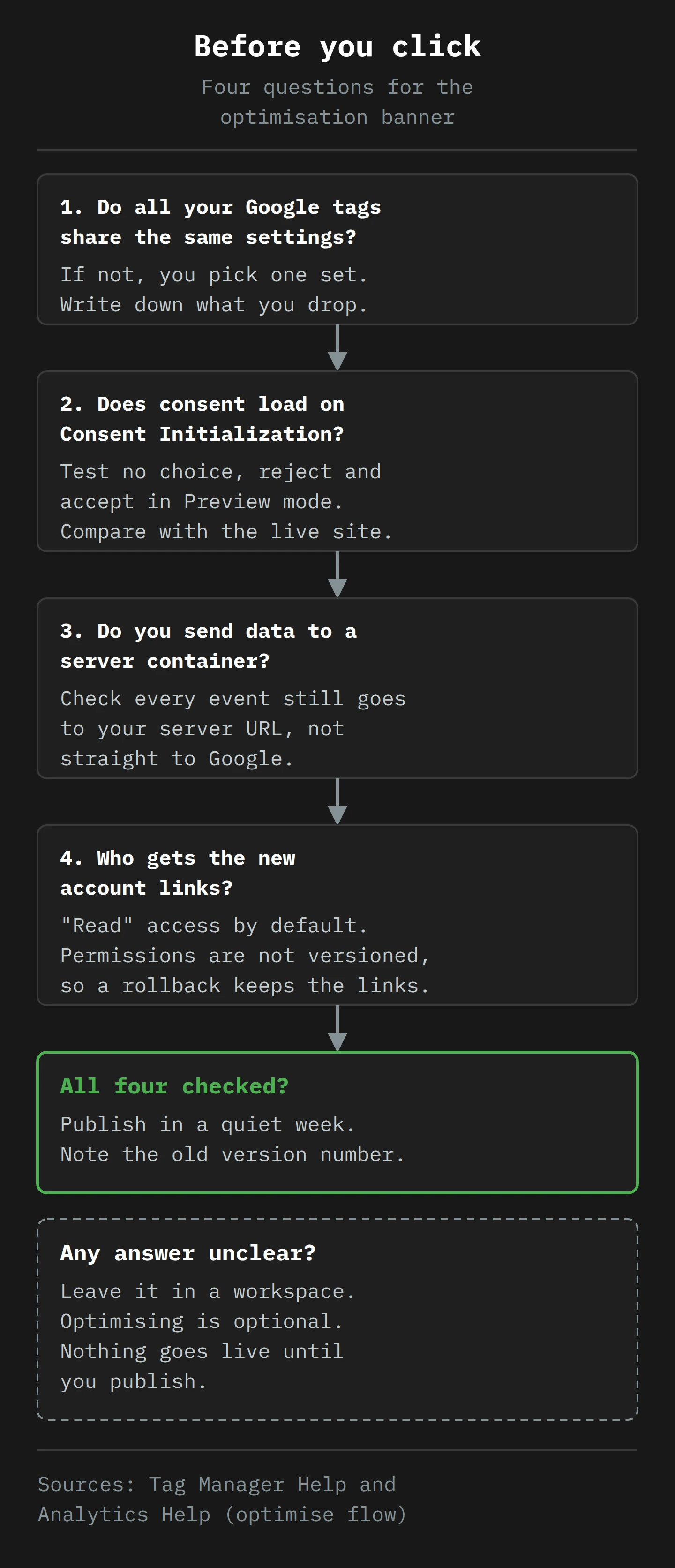
If you are staring at the banner right now, this is the short version. If you are not, bookmark it for the day it arrives.
1. Read the banner's wording. "Optimize your Tag Manager container" with Review details means your Google tags agree. "Upgrade your Tag Manager container" with Get started means they do not, and you will have to choose whose settings win. The second case needs more care.
2. Write down every Google tag and its settings before you start. Destinations, cross-domain domains, configuration parameters (especially server_container_url), user-provided data settings. Also check which ID your site actually loads (GTM- or G-/AW-) on every template and subdomain, because since July the ID decides what the container is allowed to run.
3. Record a consent baseline on the live site. Three runs: no choice, reject, accept. Network tab, Google domains and your server domain. Save the lists.
4. Optimise in a separate workspace, never your default one. Use Preview changes, then Add to workspace. Do not publish.
5. Repeat the three runs in Preview mode. The gtag.js request should disappear. Nothing else should change unless you meant it to. Check the consent state on each request.
6. If you use a server container, follow every event. Confirm each one goes where it went before: your server, or Google. Pay special attention to Google Ads and any tags that override server_container_url.
7. Check External Account Links after publishing. Decide which product accounts should see the container, and at what level. Remember that a rollback does not remove these links.
8. Check your install instructions. If a developer, a CMS plugin or a site template reinstalls the Google tag from Google's new snippet, there will be no config line. Make sure nothing on the page depends on it, and move any start-up logic into the container, on the gtm init trigger or Consent Initialization as appropriate.
9. Or wait. The optimisation is optional. If your container is a museum of old tags and you cannot answer the questions above, the right first step is a clean-up, not the banner. Google has not set a deadline, and as of August 2026 there is no penalty for leaving the banner alone.
If you run a site with only a plain Google tag and no GTM, your situation is simpler. Your tag will gain a container you can open. Open it once, look at the Settings tab and the destinations, and make sure you know who in your team has access. You now own a mail room. It is worth knowing where the key is.
Final Thoughts
The blue banner is still there on the Overview page, and it is still polite. It is not trying to trick you. The change behind it is mostly good: one less library on the page, one place for settings, and a container that can finally see the Google tag it has been carrying around since 2023.
But "nothing changes on the page" is Google's claim about the delivery path, not about your setup. Your setup includes consent logic that may lean on a line Google is removing, a server container whose address sits in a setting that is about to move, and account links that a rollback will not undo. The only way to know whether those survive is to look, before and after, at what actually leaves the browser.
So the takeaway is simple. The banner is safe to accept when you have tested it, and not before. Write down the old settings, record three consent runs, optimise in a workspace, repeat the runs in Preview mode, follow each event to its destination, and check External Account Links. If you cannot do that this week, leave the banner alone until you can. It will wait. It is very good at waiting.
And please, while you are in there, delete "test - Marcus".
Now, if you'll excuse me, the kettle has just clicked off, and I have a container of my own to look at.
Notes
-
Every long-lived container has a Marcus. He was very good at his job, and his one test tag has now outlasted two redesigns, a CMS migration and the company's original logo. ↩
-
Google's developer documentation gives Google Ads as the example: the tag has a legacy
AW-ID and a newerGT-Google tag ID at the same time, and Google says the two are interchangeable. ↩ -
Google's help page now shows the date 20 August 2026. Coverage from May and June quotes the same page as published on 20 May 2026, so the page appears to have been updated in place when the rollout began. ↩
-
According to PPC Land's summary of Google's documentation, the visual tool needs a Google Ads account with at least one conversion action that tracks transaction values, an order confirmation page, a sitewide Google tag, edit access to the container and an authorised credit card for a test order. ↩
-
The case involved the publisher of the noz.de news site and the data protection authority of Lower Saxony, which had ordered the site in November 2022 to stop loading Google Tag Manager without consent. The court decided on 19 March 2025. ↩
-
Simo Ahava suggests using a clearly named variable that returns the empty value, rather than a blank field, so that a colleague does not "fix" the empty field later and break the routing. ↩
-
A Huon Valley cider maker would probably pour a cider instead. Wendell is made up, so I get to decide, and he drinks tea. ↩